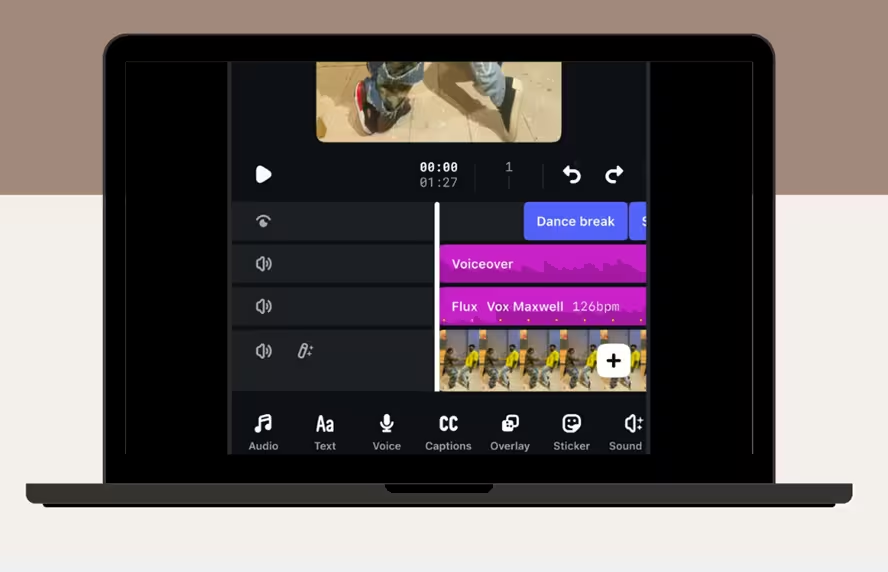
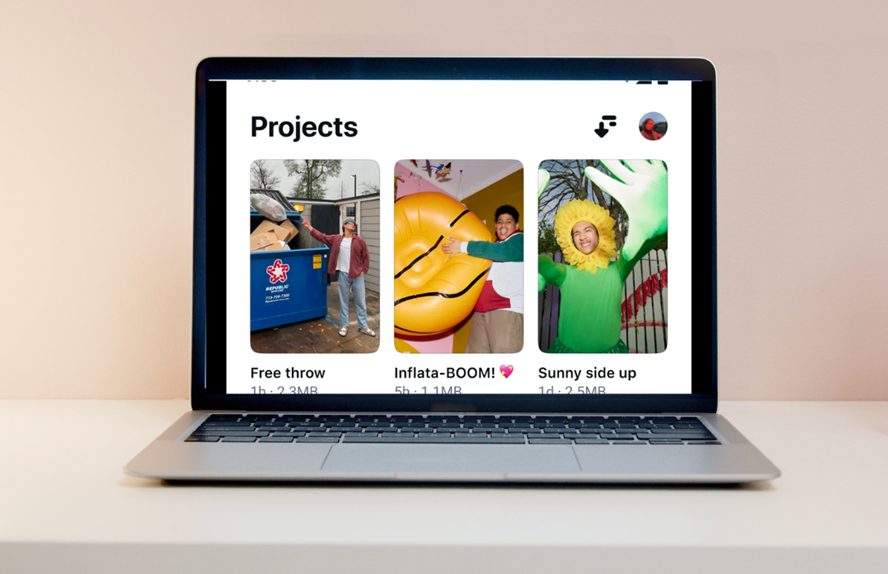
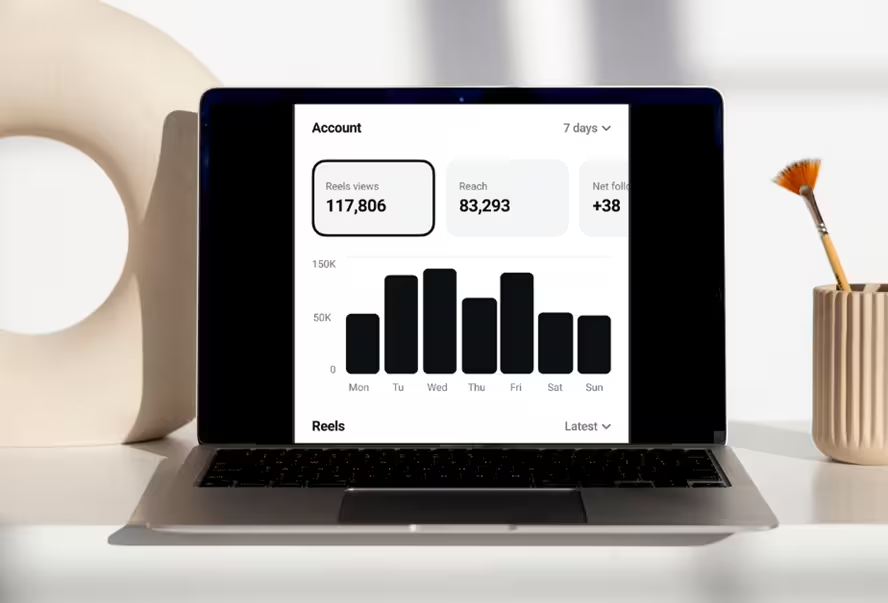
Link to download Edits for your PC or laptop on Windows 10, 11 and macOS - plus a step-by-step guide to install it and start editing on the big screen, for free.
Before you start: Edits doesn't have a standalone PC version yet. On Windows it runs through an Android emulator (LDPlayer, BlueStacks, NoxPlayer, or Gameloop); on Apple silicon Macs it installs directly from the Mac App Store. Both routes are covered below.
GUIDE 01
Edits for Windows 10 / 11
Since Edits is designed for mobile, an emulator is the smoothest way to run it on Windows. Check the requirements, grab the download, then work through the checklist.
Offline use: after installation you can edit without internet - a connection is only needed for login, updates, and some features.
Why M1+: Apple silicon Macs can run the iOS version of Edits natively, which is why an emulator isn't required.
REVIEW
Pros and cons of Edits on PC
What to expect when running a mobile-first editor on a desktop.
Pros
User-friendly interface, easy to navigate
Supports a wide range of basic and advanced editing tools
Larger screen and more processing power than a phone
Free, with no watermarks on exports
Cons
Potential compatibility issues with certain emulators
May lag when processing long videos on low-end systems
No standalone PC version yet - Windows requires an emulator
Export currently tops out around 1080p–2K (no 4K)
FAQ
Frequently asked questions about Edits PC
Quick answers about running Edits on a computer.
"Edits PC" refers to running the Edits video editing app on a computer - via an Android emulator on Windows, or natively from the Mac App Store on Apple silicon Macs. You get the same features (trimming, effects, color adjustments) with a larger screen and more performance.
No - Edits does not currently have a standalone PC version. On Windows you need an Android emulator to run it; on M1 or newer Macs it installs directly from the Mac App Store.
Yes - the app is free and the emulator route doesn't cost anything either. There are no watermarks on exports.
The safest path is to download the emulator from its official website (LDPlayer, BlueStacks, NoxPlayer, or Gameloop) and install Edits from the official Google Play Store inside it - or from the Mac App Store on a Mac. Avoid sideloading APK files from unofficial mirrors.
Edits runs well on popular Android emulators like BlueStacks, NoxPlayer, Gameloop, and LDPlayer.
Edits can run on Windows 7, 8, 10, and 11 (64-bit) through an Android emulator, as long as your PC meets the emulator's requirements.
Yes - after installation you can edit offline. An internet connection is required for logging in, updates, and certain additional features.
Not currently - editing and export support up to 1080p–2K resolution.
Check for updates in the Google Play Store inside your emulator (or the Mac App Store on a Mac). If a new version is available, just click "Update".
Ready to edit on the big screen?
Pick your platform and follow the checklist - you'll be cutting your first reel in minutes.